OBS Stinger Transition Video Pack
A downloadable tool
What's this?
This is a pack of MP4 files to be used in OBS (Open Broadcaster Software) for video transitions, using the "Stinger Mask." A lot of these are pretty common transitions found online, but it also contains a few I made for myself. I converted them to work with OBS.
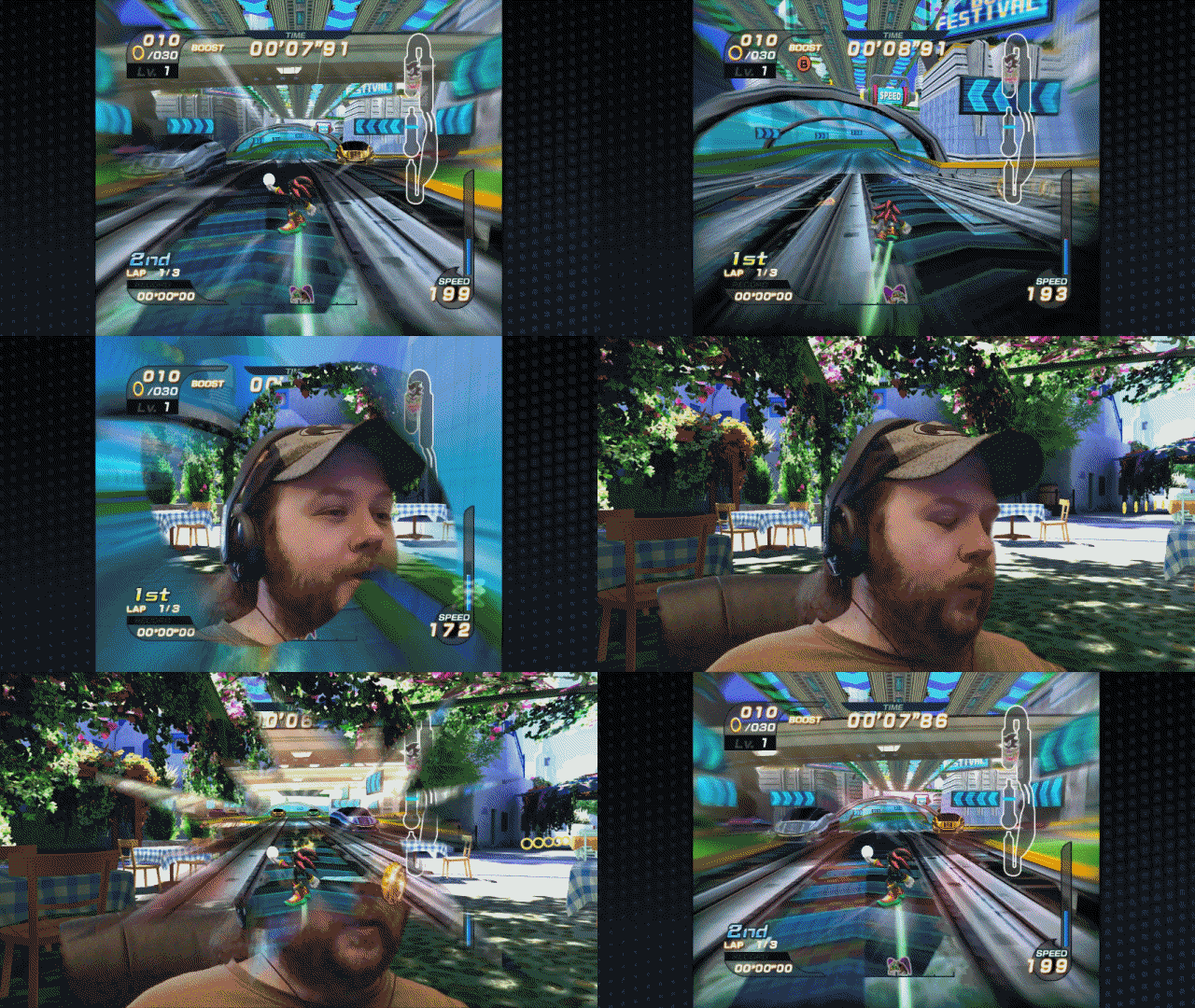
Click the GIF on the right to see an example in action. ➡
Included Transition Videos
- Balls Out
- Barn Doors Close
- Barn Doors Open
- Blobs
- Burst (as seen to the right)
- Butterfly Zoom
- Bytes
- Checkerboard
- Chomping
- Crusty
- Curling Smoke
- Diagonal Wipe
- Diamonds
- Draw Box
- Draw Box (Smaller)
- Floral Growth
- Horizontal Alternating Bars
- Iris In
- Iris Out
- Mandelbrot Fractal
- Many Clocks
- Maple Leaf
- Overlay Stars
- Pinch
- Pixel Infection
- Puzzle
- Quad Clock
- Scraps
- Scratches
- Shutters Close
- Shutters Open
- Side Wipe
- Slime
- Splat Explode
- Splat Top
- Star Wipe
- Stargate In
- Stargate Out
- Swirl
- Swooce In (as seen to the right)
- Swooce Out
- Vertical Alternating Bars
- Wiggly
- Yoshi's Island Wipe
What's a "Video Transition"?
Let's say you want to show two images. Now, if you showed one image after another, there'd be a hard cut where one image suddenly became the next image. A video transition will usually be some kind of animation that moves from one image to the next. Some video transitions cover the entire screen, like if you watch a football game, there may be an animation of a football or a logo that transitions from one camera angle to the next. Other transitions may simply fade from one image to the other.
What's a "Stinger Mask"?
A Stinger Mask is something OBS uses to help fade between scenes. "Masking" in visual media is a way to make image layers stay contained in a specific space. Like cutting a hole out of a piece of paper is a type of masking. The concept is very similar for video. One color is designated as the "mask" and can be seen through. OBS allows us to fade between two colors (black to white) and use that as a mask to create a video transition. These are then ultimately referred to as "stinger transitions," because a "stinger" is an old video term dating back to the 80's used in television studios for these kinds of short transition animations.
How do I use this with OBS?
If you need a visual guide, there's plenty of videos out there that will tell you how to do this, but basic directions are also listed below.
How do I make these animate faster?
You will have to figure out to increase the video's playback speed, which usually means re-rendering it somehow. That's beyond the scope of this OBS listing. As of this writing, DaVinci Resolve is a free video editor, and that may be a good place to start.
Can you teach me how to make other types of OBS transitions?
You're on your own, kid. If you made it this far, I believe in you! You'll figure it out!
Download
Install instructions
- Copy one or all of these videos to a folder on your HDD.
- Enable the "Scene Transition" panel under OBS's "Docks" drop down (even if you already have a Scene Transition menu in Studio Mode).
- In the Scene Transition dock, push the Plus button and select "Stinger."
- Name your stinger transition, click OK, and you'll be presented with a menu that lets you add a video file.
- Select a video from this pack.
- Now check the box that says "Use a Track Matte."
- In the Matte Layout drop down, select "Mask Only."
- You can preview the transition to see an example if you want, and then click "OK" to add the transition to your transition library.
- Now, as long as it's selected, you will cross fade between two scenes using the transition you just made!
Leave a comment
Log in with itch.io to leave a comment.